
AI art generator tools let you create amazing pictures just by typing a few words. Whether you want a photo-like portrait or a magical scene, these tools can bring your ideas to life, no art skills needed.
But why is an AI art generator such a big deal in 2025?
They’re for everyone. Whether you’re a complete beginner or an experienced designer, you can simply describe what you want, and the AI takes care of the rest.
Want to upgrade your social media visuals?
Create immersive worlds? Or just have fun exploring your imagination? AI art tools make it incredibly easy, with no stress and a relatively flat learning curve.
These tools are quick, simple, and a little addictive. Artists, content creators, and even businesses are now using AI to make eye-catching images.
In this easy guide, you’ll learn 11 smart and simple tips to get the best results. We’ll show you how to write better prompts, use clever settings, and fine-tune your images.
Let’s jump in and turn your words into amazing art!
Understanding AI Art Generators
What Are AI Art Generators?
AI art generators are smart tools that turn written descriptions (called prompts) into pictures.
They use powerful computer systems trained on millions of images. This helps them understand how words connect to visual things like shapes, colors, and styles, so they can create brand-new images based on what you type.
They know a lot about different looks and art styles; these tools can make images that match even very detailed or creative prompts.
Popular AI Art Tools in 2025

AI art generator tools are getting more popular, and there are many great options to choose from, each with something special:
⚙️Pixci – Great for making very realistic and high-quality AI art. It’s known for sharp, detailed images.
⚙️Midjourney – Famous for its creative, artistic style and unique image results.
⚙️DALL·E – Very good at understanding complex ideas and keeping the final image accurate to the prompt.
⚙️NightCafe – Easy to use and includes several different AI art styles.
⚙️ Artbreeder – Lets you mix and change images to create something new.
⚙️Leonardo AI – Perfect for game art and concept design.
Types of AI Art Generator Outputs
AI art generator tools can make many types of pictures, depending on what you need. Here are some common ones:
☑ Realistic portraits and characters
☑ Imaginary landscapes and fantasy scenes
☑ Creative and unusual artwork
☑ Product images and sample designs
☑ Ideas for decorating rooms or spaces
☑ Covers for books, music albums, and more
You can use numerous high-quality AI models in one location with useful tools like Pixci, which will save you time and effort. Furthermore, DALL·E 3 is significantly more adept at comprehending your prompts and transforming them into the visuals you envision.
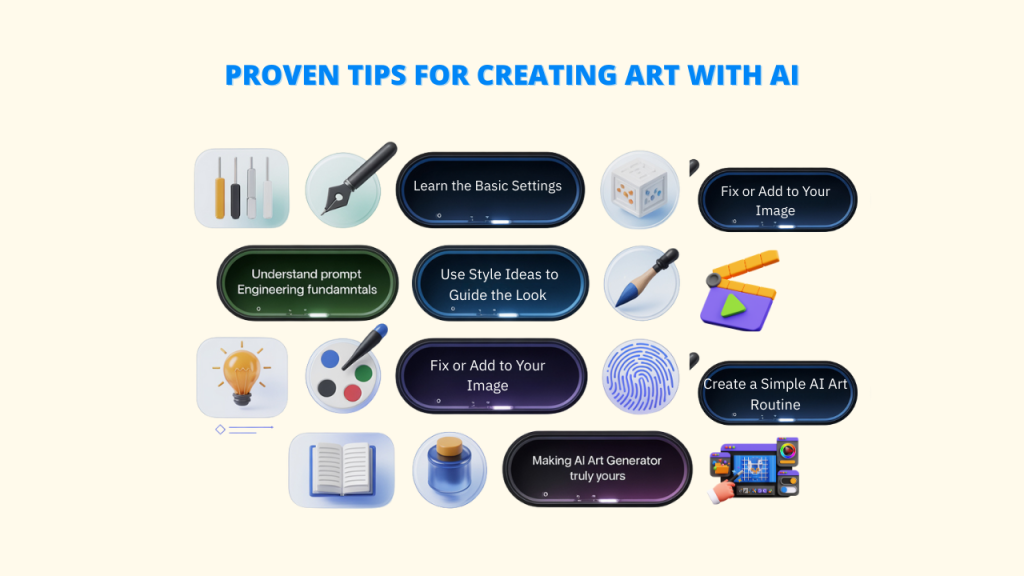
11 Tips for Using AI Art Generators
📌 Basic Principles of AI Art Generators
1. Understand Prompt Engineering Fundamentals
➜How AI interprets text prompts: AI models analyze the words and phrases in your prompt to identify objects, actions, styles, and moods. They rely on their training data to understand the relationships between these elements and generate a corresponding image.
➜ Importance of clear, descriptive language: Vague or ambiguous prompts can lead to unpredictable results. Using precise and detailed language helps the AI understand your vision more accurately.
➜ Basic prompt structure best practices: A common structure involves specifying the subject, action, style, environment, lighting, and mood.
For example: “A majestic lion roaring on a rocky cliff at sunset, in the style of a dramatic oil painting with warm, golden lighting.”
2. Learn the Basic Settings
Besides writing a good prompt, most AI art generator tools also let you adjust different settings to control how your image turns out:
➜ Image size and shape: Bigger images have more detail but may take longer to make. Pick the right size based on where you’ll use the image like for social media, printing, or websites.
➜ Seed numbers: Each picture is made using a random number called a “seed.” If you save the seed from an image you like, you can use it again to create something similar while changing other parts.
➜ Sampling options: Different styles the AI can use to make some images look more real and or others more artistic. Try a few to see what suits your style. Tools like Pixci help you create, edit, and organize images all in one place.
📌 Crafting Effective Prompts
3. Write Clear and Detailed Prompts
You may not get what you want from the AI if your prompt is too general. The more details you give, the better the results will match your idea.
- Not clear: “A beautiful landscape”
- Much better: “A mountain lake at sunrise, with clear water reflecting snowy peaks, pine trees by the edge, soft golden light, and thin clouds in a calm sky”
Try to be clear about things like:
➜ Materials: Don’t just use metal or stone; use words like shiny aluminum, old copper, or see-through jade.
➜ Lighting: Say soft morning light, bright noon shadows, or warm candle glow
➜ Mood or feel: Words like “generate image” can inspire your prompts. foggy, calm, dreamy, mysterious, or dusty
➜ Time or style: Say Victorian times, 1980s cyberpunk, or ancient Mesopotamia.
More details = better art results!
4. Use Style Ideas to Guide the Look
The appearance of your AI image is influenced by style references. They add a certain mood or artistic quality to the picture.
You can use the following to direct the AI art generator:
➜ Art styles: like impressionist, art deco, baroque, vaporwave, or ukiyo-e
➜ Famous artists: like in the style of Monet, similar to HR Giger, or like Alphonse Mucha
➜ Type of art: like oil painting, pencil drawing, digital art, or old film photo
To get more interesting results, mix a few style ideas together.
Example:
“A portrait of an old fisherman with a thoughtful look, in a mix of Rembrandt and Norman Rockwell styles, with strong lighting and soft, dull colors.”
This helps the AI know the kind of art you’re going for.
5. Use Basic Art Terms to Improve Your Results
Adding common art terms can help the AI art generator create better and more detailed images.
Here’s how you can use them:
➜ Lighting words: Use terms like soft lighting, glow from behind, dim light, or light beams to control how the light looks in your image.
➜ Composition words: Try phrases like centered layout, balanced look, diagonal lines, or even layout to guide how things are arranged in the picture.
➜ Art type or material: You can tell the AI to make the image look like a watercolor painting, oil painting, pencil drawing, 3D image, or real photo.
Helpful tools like Pixci can also store and organize your artwork and even help you fix or improve old photos easily.
📌 Advanced Techniques
6. Master Weight Parameters
Some AI art generator tools let you show which parts of your prompt matter more using symbols like :: or ++. This helps the AI know what to focus on most.
➜ How It Works:
- Highlight key parts: Add more weight to the most important things in your prompt (like the main subject or style).
- Tone down less important parts: Lower the weight for background details or things you want to be less noticeable.
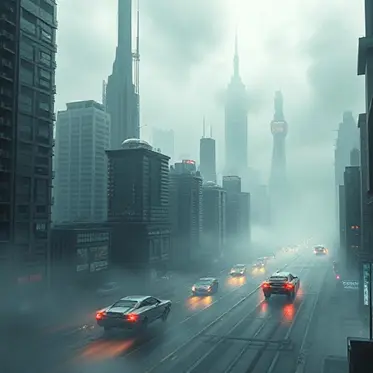
➜ Example: “A city of the future::2 with flying cars::-1 in a fog-filled environment::0.5”
- The city is most important
- Flying cars should be barely visible
- Misty atmosphere gets medium attention
By using weights, you can guide the AI to focus on exactly what you want in your image.
Result :
Post-Generation Improvement
7. How to Make AI Images Clearer (Upscaling)
Sometimes AI images or old images are not sharp or detailed enough. You can fix that by making them newer and clearer:
➜ Use tools to make images sharper: Try programs like Pixci or other online tools to make your image bigger without losing quality.
➜ Keep the details: Pick upscaling tools that improve size without making the picture blurry or stretched.
➜ When to upscale vs. redo the image:
- If the image looks good but is just small or blurry, upscale it.
- If it has big mistakes, weird shapes, or bad parts, it’s better to make a new one with better settings.
8. Fix or Add to Your Image (Inpainting & Outpainting)
You can also fix small problems or add more to the image:
➜ Fix small mistakes with inpainting: Select the part you don’t like and use a tool to fix just that area using a new prompt or matching it to the rest.
➜ Add more to the edges without painting: Want to make your image wider or taller? Outpainting helps you expand the picture with new, matching parts.
➜ Keep the style the same: Whether you’re fixing or adding, always make sure the new parts look like the original, same style, lighting, and mood.
📌Being Smart and Responsible with AI Art
9. How to Make Your AI Art Generator Truly Yours
➜ Go beyond copying: It’s okay to be inspired by famous styles or artists, but try to come up with your special look by mixing things up in your way.
➜ Design prompts in your way: Experiment with the prompts you write. To create something that feels uniquely yours, try utilizing different words, original concepts, or technical terms.
➜ Mix different methods: Use a mix of prompt tricks—like using negative prompts (telling the AI what not to do), adding effects later, or combining styles—to make art that stands out.
10. Making an AI Art Generator That Fits Different Needs
Change how you make your images depending on where you’ll use them:
➜ For social media: Use square or tall images (perfect for platforms like Instagram). Choose bright and eye-catching colors to stand out in busy social media feeds. Useful tools include Pixci, which is excellent for creating logos, editing images, deleting backgrounds, enlarging images, and even stretching portions of a picture.
➜ For printing: Make your image high-quality (high resolution). Also, consider how it will appear on various types of paper textures.
➜For business use: Pick AI tools that come with commercial licenses (like Pixci or Adobe Firefly) and are built using legal, licensed images.
➜ For websites: Leave some blank space in the image if you want to add text. Make sure the image matches your brand’s colors, fonts, and style.
11. Create a Simple AI Art Routine
As you proceed, develop a methodical approach to improve outcomes:
➜ Keep a prompt notebook – Prompts that produced excellent results can be written down for later use, or you can use tools like Pixci to store prompts for later use.
➜ Make prompt templates – Build some reusable prompt formats that you can quickly change for new art.
➜Save seed numbers – Note the seed number for any image you like, so you can recreate or adjust it later.
➜Track your changes – Use version control or take notes on how each change affects your results.
➜Be part of a community – Join AI art groups to learn tips, share your work, and get helpful feedback.
Stay Ready for the Future of AI Art Generators

AI art is growing fast—and you should grow with it. New tools and features come out all the time. To stay ahead, you need more than just prompt skills. Here’s how to keep your AI art generator skills strong and up to date:
1. Watch Emerging Trends in AI Art
AI art is moving into exciting areas like video, 3D, and interactive design. Platforms are now testing tools that turn text into videos, animations, and even 3D visuals.
🔮 Trending Ideas to Look For:
- “Real-time AI art”
- “AI-made animations”
- “Interactive or immersive art”
- “AI that mixes text, images, and video”
Tools like Pixci let you do many things in one place: create images, edit them, make ads or logos, and more.
2. Build Creative Skills That Last
Knowing how to prompt is great—but lasting skills are even better. Focus on creative talents that work with or without AI:
- Learn how to arrange images (composition) and use colors well
- Tell stories through pictures
- Get better at coming up with ideas and directing projects
- Understand what your audience likes and how to make art that fits a brand
These skills will help you no matter how AI art generator tools change in the future.
3. Get Ready for Smarter AI Tools
The AI art generator tools are rapidly improving. Soon, they’ll be quicker, smarter, and easier to use. You might see things like:
- Making art just by speaking (voice-to-image)
- Designing with hand movements in AR or VR
- An AI Art generator that changes in real time as you interact with it
Tip: Try new tools early—they can give you a big advantage.
4. Create a Unique Style in a Crowded Space
How can you stand out when AI art generator tools are everywhere?
- Concentrate on establishing your own style.
- Use the same kind of prompts and edits to keep your look consistent
- Mix AI with other art tools to create a blended or “hybrid” look
- Add meaning or stories to your art—not just visuals
Your personal touch still matters a lot. You can make unique images for blogs, websites, and other media with the aid of programs like Pixci and StarryAI.
Conclusion
AI art is a creative and enjoyable process that combines technology and creativity. The real magic happens when you keep trying new things and find your own way of doing it with the right prompts.
As you keep going, you’ll start to see how small changes in your prompts can change the results. Don’t worry about always doing it “right”; Some of the best art comes from trying something different or even by accident.
AI tools keep getting better, with new features and models coming out all the time. Platforms like Pixci make it easy for anyone to create and edit images using a powerful AI tool all in one place. It supports over 25 models and offers lots of flexibility.
AI doesn’t replace your creativity; it brings it to life at a much faster pace. The more you explore and experiment, the more your skills and style will grow. So stay curious, try new things, and let AI be the tool that brings your creative ideas to life!